Using YuJa Panorama in Canvas
Panorama is UC San Diego's accessibility platform for Canvas. It integrates directly with your courses to help you identify, prioritize, and remediate accessibility issues in your content, while providing students with accessible alternative formats for supported documents
Whether you're new to accessibility or looking to improve an existing course, this guide will introduce key concepts and help you get started.
On This Page:
- Part 1: What is Digital Accessibility?
- Part 2: How to Use Panorama (Step-by-Step Guide)
- Part 3: What Can Panorama Fix? (Remediation Capabilities)
- Part 4: Reference Materials & Key Terms
- Part 5: Known Issues & Updates
Part 1: What is Digital Accessibility?
Accessibility is the practice of designing and creating digital content so it can be accessed, understood, and used by everyone, including individuals with disabilities. Accessible course content benefits all learners by improving readability, navigation, usability, and compatibility with assistive technologies. The best accessibility practices—such as using headings, descriptive hyperlinks, and sufficient color contrast—also improve the overall learning experience for students who do not rely on assistive technology.
Part 2: How to Use Panorama (Step-by-Step Guide)
Preparing your course for accessibility doesn't have to happen all at once. Panorama helps you identify accessibility issues, prioritize the improvements that will have the greatest impact on students, and remediate your course content over time.
Step 1: Access Panorama
To get started, contact the Panorama team at canvas@ucsd.edu (see Step 5) and include the course(s) you would like to use with Panorama. We’ll then notify you when they are enabled.
Step 2: Get Acquainted with the Panorama Tools
Panorama includes a variety of tools to help you identify and remediate accessibility issues in your course content. To learn how to use Panorama's features—including the Accessibility Report, document remediation tools, alternative formats, and accessibility indicators—explore the resources below:
- Panorama's Instructor Guide
- UC San Diego Panorama Training Recordings (To be added)
Step 3: Understand Your Accessibility Results
Once you've accessed Panorama, you'll begin seeing accessibility scores and issue summaries throughout your course. Understanding these results will help you prioritize your remediation efforts.
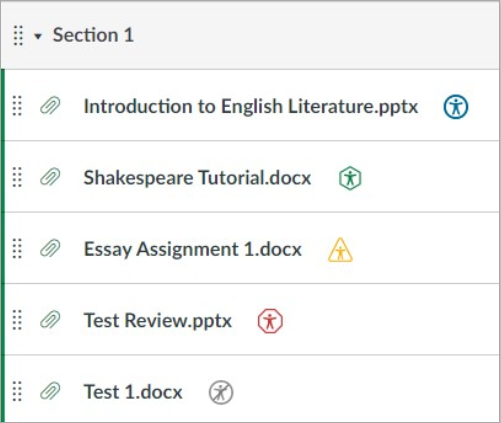
Accessibility Indicators (Icons): Colored icons displayed throughout Canvas that provide a visual indication of the accessibility status of course content.
- Blue circle — Accessibility icon (Student View)
- Dark green octagon — Very high accessibility scores
- Green hexagon — High accessibility scores
- Yellow triangle — Medium accessibility scores
- Red hexagon — Low accessibility scores
- Red rounded hexagon — Very low accessibility scores
- Gray prohibition — Alternative formats disabled for this document
- Purple circle — File is being processed for accessibility
Severity Levels: Panorama groups accessibility issues into three categories based on their impact on students:
- Severe — Issues that may prevent a student from accessing course content or completing a learning activity independently.
- Major — Issues that generally allow students to continue but require additional effort or reliance on workarounds.
- Minor — Accessibility improvements that enhance usability and follow best practices but are less likely to prevent students from completing course activities.
Tip: While we recommend prioritizing issues based on their severity, all accessibility issues should be addressed over time to improve the learning experience for all students.
Step 4: Plan Your Remediation Strategy
Following a consistent remediation strategy can help you make meaningful accessibility improvements while focusing first on the issues that have the greatest impact on students.
Start Where Students Start
If your course uses Modules as its primary navigation, begin reviewing the content available through your modules. Once you've completed your review of the modules, visit the Files area to identify any additional documents, images, or other files that may not be linked from a module. If your course does not use Modules as its primary navigation, review your course by visiting the major content areas, including Pages, Assignments, Discussions, Quizzes, and Files.
Choosing the Right Approach
The best remediation strategy isn't one-size-fits-all—it depends on how your course is structured:
- For Standalone Resources (Severity-First Approach): Works well when items have no structural dependency on each other. When reviewing a document's accessibility report, use the severity filter to display only Severe issues. Resolve those issues, save your changes, and move to the next document. Once all Severe issues are addressed course-wide, repeat for Major issues, then Minor issues.
- For Module-Based Courses (Document-First Approach): Because modules represent a sequential learning path, a partially remediated module creates a fragmented student experience. Completing all severity levels (Severe, Major, and Minor) for each item before moving on ensures every learning unit is fully accessible when students reach it.
- A Hybrid Approach: Prioritize documents by course sequence first, then apply severity-first logic within that ordered list. This ensures early-course content gets fully resolved before later materials, while still respecting the urgency of Severe issues. Remember: Accessibility is an ongoing process. Don't feel that every issue must be addressed during your first review. By focusing on Severe issues first, you create a solid foundation for continued remediation in future terms.
Step 5: Contact the Panorama Team
The EdTech team is ready to help you get started with Panorama and answer questions about accessibility and content remediation. Contact us by emailing canvas@ucsd.edu.
Part 3: What Can Panorama Fix? (Remediation Capabilities)
Accessibility remediation is often a multi-step process. While Panorama evaluates supported course materials and provides guided remediation for many common issues, some will still require manual review in the original source document.
Guided vs. Structural Remediation
- Guided Remediation walks you through correcting supported accessibility issues one step at a time directly within Canvas, making it easier to understand and resolve issues without hunting down external documentation.
- Structural Remediation refers to advanced tools that repair the underlying structure of supported documents (particularly PDFs), improving compatibility with screen readers.
Guided Remediation Capabilities by Issue and File Type
The types of accessibility issues Panorama can guide you through vary by file type.
Legend:
- ✅ = Guided remediation available
- ✅* = Supported through Structural Remediation
- ❌ = Manual remediation required
- N/A = Check does not apply or is not evaluated for that file type
Table of accessibility issues along if the file type has guided remediation, structural remediation, manual remediation, or does not apply. Accessibility Issue
Canvas Pages
PDFs
Word
PowerPoint
Excel
Alternative Text
✅
✅
✅
✅
✅
Color Contrast
✅
✅
✅
✅
✅
Missing Headings
N/A
✅*
❌
N/A
N/A
Improperly Nested Headings
N/A
✅*
❌
N/A
N/A
Headings Do Not Start at H1
N/A
✅*
✅
N/A
N/A
Descriptive Hyperlinks
✅
❌
✅
✅
✅
Reading Order
N/A
✅*
N/A
✅
N/A
Missing Table Headers
✅
✅*
✅
❌
❌
Missing Document Title
N/A
✅
✅
✅
✅
Missing Document Language
N/A
✅
✅
✅
N/A
Part 4: Reference Materials & Key Terms
Use this section to look up accessibility terminology, understand how Panorama scores are displayed, and learn about different file formats.
What is Digital Accessibility?
Accessibility is the practice of designing and creating digital content so it can be accessed, understood, and used by everyone, including individuals with disabilities. Accessible course content benefits all learners by improving readability, navigation, usability, and compatibility with assistive technologies. The best accessibility practices—such as using headings, descriptive hyperlinks, and sufficient color contrast—also improve the overall learning experience for students who do not rely on assistive technology.
Panorama Specific Concepts
Accessibility Indicators (Icons): Colored icons displayed throughout Canvas that provide a visual indication of the accessibility status of course content.
Guided Remediation: Step-by-step guidance provided by Panorama to help instructors identify and resolve supported accessibility issues.
Structural Remediation: Advanced remediation tools that repair the underlying structure of supported documents, particularly PDFs, improving compatibility with assistive technologies such as screen readers.
Alternative Formats: Alternative versions of supported documents that students can download in formats such as HTML, tagged PDF, EPUB, electronic Braille, audio, and BeeLine Reader.
Immersive Reader: An alternative reading experience that allows students to customize how content is displayed by adjusting text spacing, font size, colors, and read-aloud options.
Digital Accessibility Concepts
Accessibility Structure: The underlying structure of a document or webpage that enables assistive technologies to correctly interpret its content (headings, lists, tables, reading order, etc.).
Screen Reader: Software that converts digital content into synthesized speech or braille. Learn More: Watch how a screen reader user navigates a webpage: Video Link
Headings & Heading Levels: Headings identify the beginning of a new section and organize content hierarchy (Heading 1, Heading 2, etc.). Each heading should logically follow the level above it.
Alternative Text (Alt Text): A brief description (up to 125 characters) that conveys the meaning of an image to someone who cannot see it.
Long Description: A detailed description used for complex images, charts, and graphs when alt text alone is insufficient.
Decorative Image: An image that provides visual interest but does not convey necessary information. These should be marked as decorative so screen readers skip them.
Contrast Ratio: The difference in brightness between text and its background.
OCR (Optical Character Recognition): Technology that converts scanned images of text into searchable, selectable, and accessible text.
Document Types
- PDF: Designed to preserve a document's appearance regardless of the device/software used.
- Scanned PDF: Created by scanning a paper document. Generally not accessible until OCR has been performed.
- Text-based PDF: Contains actual text rather than images of text. Searchable, selectable, and provides a much better foundation for accessibility remediation.
Hyperlinks
- Descriptive Hyperlink: Text clearly communicates its destination/purpose without requiring additional context (e.g., Review the Canvas Gradebook guide).
- Generic Hyperlink: Text does not clearly describe its destination (e.g., Click here, Read more). These make navigation difficult for screen reader users.
- Raw URL: A web address displayed as the hyperlink text instead of meaningful descriptive text. Whenever possible, replace raw URLs with descriptive hyperlinks.
Part 5: Known Issues & Updates
Panorama Known Issues
This section outlines known issues affecting Panorama in UC San Diego's Canvas environment resulting from current product limitations or vendor-reported defects.
Issue: Embedded Documents May Not Be Reflected in the Canvas Page Accessibility Indicator
When a supported document (Word, PDF, PowerPoint, etc.) is embedded within a Canvas Page, the accessibility indicator displayed for the Canvas Page in the Modules area reflects only the accessibility of the page itself. It does not indicate whether the embedded document contains accessibility issues.
Instructors may see a green indicator and assume all content on the page is accessible. However, after opening the page, the embedded document may display its own yellow/red accessibility indicator.
- Figure 1 — The Modules page displays a green accessibility indicator for the Canvas Page, but it does not indicate that the embedded document on the page contains accessibility issues.
- Figure 2 — After opening the Canvas Page, the embedded document displays its own yellow accessibility indicator, revealing accessibility issues that are not reflected in the page's accessibility status.
Workaround:
- Do not rely solely on the accessibility indicator displayed for the Canvas Page in Modules.
- Open Canvas Pages that contain embedded documents and review the accessibility indicator displayed for each embedded document.
- Alternatively, review supported documents directly from the Files area of your course, where each document displays its own accessibility status.
- Before publishing your course, verify that all embedded documents have been reviewed.
Status: Known product limitation.